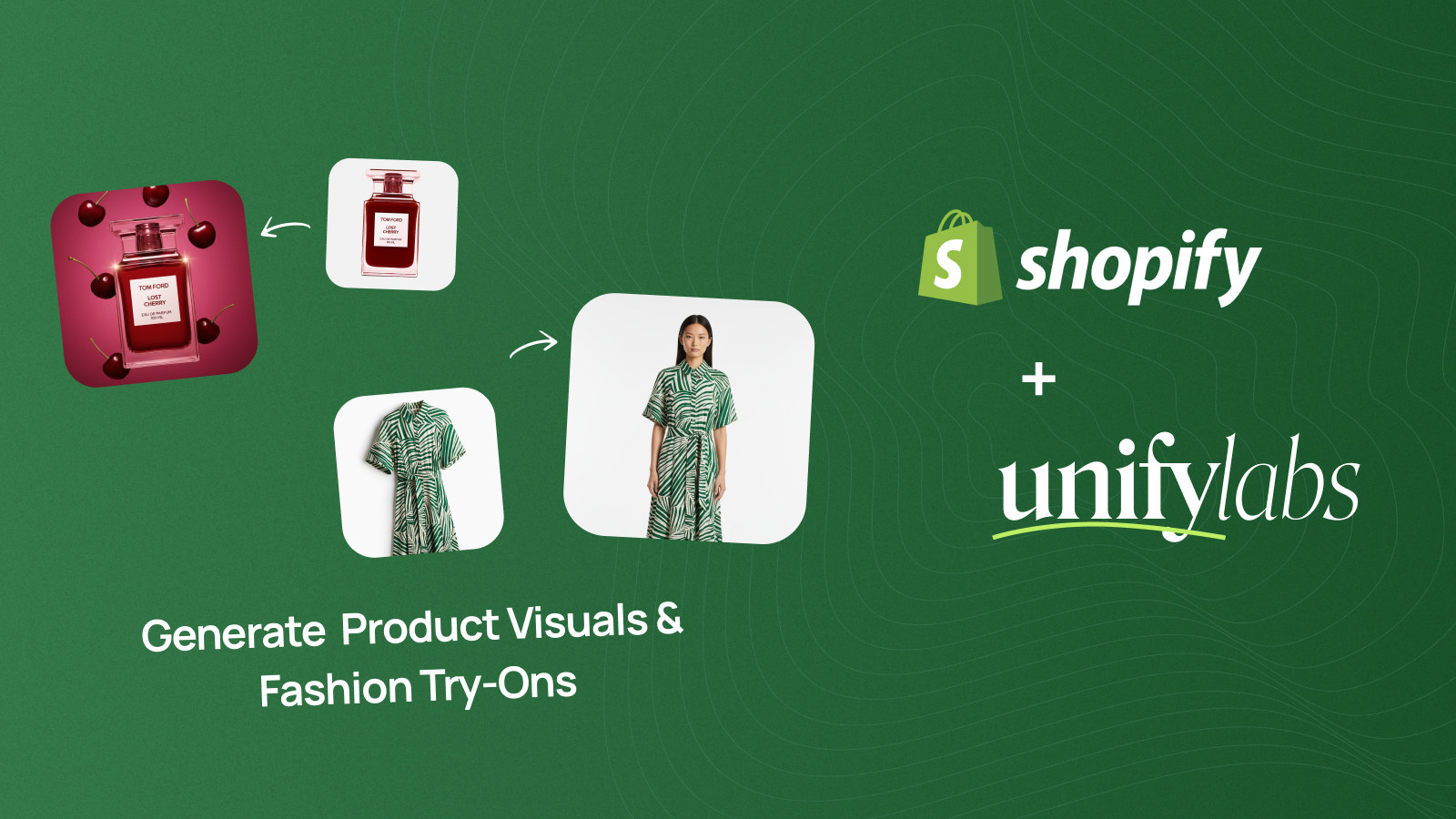
How to create AI product photos & video for Shopify (without prompts)
unify is the easiest and most reliable way to produce on-brand product visuals for your Shopify store.
Forget boring product pages, expensive photo shoots, or scattered AI tools with endless prompting. With unify, you can connect your Shopify account, import your product catalog, generate product visuals (on-model and off-model) and upload the ones you like directly back to your store.
[Jitter Video unify]
What “without prompts” actually means
“Without prompts” doesn’t mean “without control.”
It means you don’t have to write prompts for every SKU. Instead, you use:
preset styles (scenes, studio setups, photo concepts)
existing product data from your Shopify account
a repeatable flow: generate → pick favorites → upload to Shopify
If you have a specific creative idea, you can still use a custom prompt — it’s optional, not required.

Step 1: Connect Shopify to unify
Start by connecting your Shopify account to unify.

Once the connection is created, you’re ready to import products and generate visuals inside a workflow that stays organized and consistent.
Step 2: Import products from your Shopify catalog
Now import the products you want to create variations for.

You’ll notice that product categories in unify match the categories selected in Shopify — which keeps everything structured when you scale from 10 products to 1,000.
Tip: Start with 5–10 products from one category to validate your visual style, then scale.
Step 3: Create a project
Next, create a project. This is where the magic happens — inside the Canvas.
On the left sidebar, you can add:
products
AI models (for fashion try-ons)
and soon: custom workflows for bulk generations with preset styles, scenes, and models
This is how you avoid “prompt chaos” and produce visuals consistently across your catalog.

Example 1: Upgrade a product page of a couch
Let’s create our first product visual and improve a couch product page.
Choose the product photography node
Select the product
Select an indoor scene as a background in the toolbar
Select for example “In-Use” as the photo concept (e.g., a person sitting on the couch)
Hit Generate
Upload the visual to Shopify

To verify:
go to your Shopify product
check Media
refresh the customer-facing product page (PDP)
You’ll see the new visuals added instantly — bringing the product page to life and improving conversion potential.
Example 2: Recreate a reference product image of a protein bar
Do you know the feeling when you see a product visual and think: “I want that look for my product”?
With unify, you can recreate reference styles:
Select your product (e.g., a protein bar)
Under Background, choose “Upload custom image reference”
Upload your reference image
Generate a new visual inspired by that style
Upload it back to Shopify
This is especially useful for:
keeping a consistent aesthetic across your store
recreating high-performing ad styles
speeding up creative iteration without starting from scratch

Example 3: Fashion try-ons (on-model product visuals)
Creating product visuals with models wearing your products used to be a big pain for fashion brands — both in terms of logistics and costs.
Good news: you can do on model product photos and videos with unify! Let’s create visuals for a t-shirt:
Select the Fashion Try-On node
Choose a model (or let unify pick a random one) and the product
You’ll see Fashion Studio selected as background and Front View preselected
Generate the front view
Optionally generate another view (for example right-side view)
Upload your images back to Shopify
Now your product page has consistent on-model visuals with multiple angles — without a physical photo shoot.

Optional: Custom prompts for unique concepts
Presets are great — but if you have a custom idea, you can also enter a custom prompt.
Example:
let's go back to the protein bar
create a photo concept with a custom prompt like “someone holding the bar”
generate → upload
The key is: your default workflow stays promptless and prompts are only used for special concepts.


What if a product isn’t listed in your Shopify yet?
No worries.
If you have a new product that isn’t inside your Shopify catalog yet:
go to Products on the left side
add it directly in unify

What if you added new products to Shopify?
You can import them anytime using the Import Products button at the top of your dashboard.
Everything stays in sync — always.

The promptless checklist (copy this)
Use this workflow weekly:
Import 5–10 products from a category
Create a project in the Canvas
Select a product (and a model if you like) with preset scene, photo concept etc.
Generate on- and off-model visuals
Upload your favorites back to Shopify
Refresh the PDP to confirm the looks
Repeat for the whole category
Repeat again for the next category
FAQ
Do I need prompts at all? No. Presets and reference images cover most needs. Prompts are optional for unique concepts.
Can I create on-model and off-model visuals? Yes — unify supports both product photography and fashion try-ons.
Do the visuals upload directly to Shopify? Yes. Generate in unify, then upload selected visuals straight to your Shopify product media.
How do I stay organized at scale? Shopify categories carry over when you import products, so you can batch-work category by category.
Next step
Connect your Shopify store to unify, generate brand-consistent product visuals in minutes, and upload them directly to your PDP.